How to Post a Job on Care Wizard
Get your care role in front of thousands of qualified candidates in under 10 minutes. Follow this step-by-step guide to publish your first listing.
Post Your Job Now
This guide walks you through every stage of posting a job on Care Wizard, from creating your account to managing your listing once it's live. Each step includes a screenshot, so you know exactly what to expect. If you need help at any point, use the live chat button on the bottom right of the page.
Step 1: Access the Care Wizard Job Board
- Open your web browser and visit www.carewizard.co.uk.
- Once you're on the homepage, click the "Post a Job" button in the top right corner of the navigation bar. It's the dark blue button.
- You'll be taken to the job posting form. If you already have an account, you can log in first.
Tip: You can also access the job posting form directly at carewizard.co.uk/post-a-job.

Step 2: Fill In Your Company Details
The company details form is split into four steps: Company Details, Job Details, Posting Type and Payment.
Company Details
Start by completing your basic company profile by filling in the following:
- Upload your company logo using the upload box on the left.
- Enter your Company Name (as registered)
- Add your company website URL

Registration and Service Details
Scroll down to complete the Additional Details section:
- Enter your Registration of Service number (the number issued by your regulatory body).
- Select your registration authority from the dropdown: CQC, CIW, Care Inspectorate, Ofsted, Local Authority, Charity Commission, or Other.
- Choose your service type (e.g., Residential Home, Domiciliary Care, Supported Living).
- Select if you hold a Skilled Worker Sponsorship Licence (UKVI)
- Enter your company phone number.
Note: Your CQC or Ofsted registration number can be found on your certificate of registration or your provider's profile on the regulator's website.

Your Account Details
If you're a new user, you'll need to create an account to manage your listings. This is a one-time setup.
- Enter your full name as the account holder.
- Provide a valid email address. This is where you'll receive your confirmation and applicant notifications
- Create a password and confirm it in the second field.
- Click "Next" to proceed to job details.
If you already have an account, log in before clicking "Post a Job," and your company details will pre-fill automatically.

Step 3: Fill In Your Job Details
This is where you describe the role you're hiring for. A complete, well-written job listing attracts significantly more qualified applicants, so take your time here
Part A: Role basics
- Enter the Job Title (e.g., "Care Worker", "Registered Manager", etc).
- Select the Job Type: Full-time, Part-time, Contract, or Bank.
- Choose the correct category (e.g., Care Assistant, Care Management, etc.).
- Enter the Location, be as specific as possible (e.g., "Bristol, UK" rather than just "UK").
Part B: Job Description, Compensation, and Additional Qualifications
- Write a clear, detailed Job Description using the text editor.
- Enter the minimum and maximum pay for the role.
- Select the pay type: hourly, monthly, or annually.
- Input care qualifications required for the role
You can get access to free downloadable Job description templates to guide you in posting your first job.
Part C: How to Apply
Fill in how you want candidates to apply by:
- Choose how candidates should apply. Could be via a link (to your ATS or Indeed), by email, or by uploading a CV.
- Paste in your application link or email address, depending on the option selected.
- Click "Next" to proceed to select a package suitable for you

Step 4: Select a Posting Package
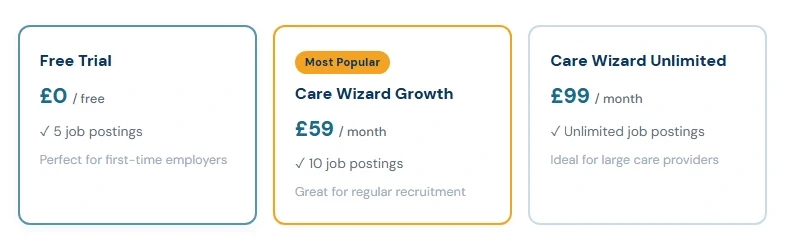
Choose the plan that fits your hiring volume. All plans give you access to Care Wizard's full pool of care sector candidates across the UK.
- Review the available plans and click "Select" next to your chosen package.
Note: You can edit your job listing after it goes live, so don't worry if you need to make changes later.
Step 5: Review & Complete Payment
You're almost there. Take a moment to review your job details before completing the payment. Payment is processed securely. Care Wizard does not store your card details.
Follow these steps to make your payments;
- Review the job listing summary by clicking “Back” on the lower left
- After confirming your Job listing, enter your card number, expiry date, and security code.
- Select your country from the dropdown.
- Optionally, add additional receipt information, such as your VAT number or billing address; this will appear on all your invoices.
- Click "Confirm & Post" to publish your job listing immediately.
Tip: Add your company VAT number or full business name in the "Additional Receipt Information" field. This makes reconciling your invoices much easier.
Step 6: Manage Your Job Listing
Once your job is live, you'll receive a confirmation email and gain access to your employer dashboard, where you can manage all your listings in one place.
- Check your inbox for a confirmation email from Care Wizard. It contains a direct link to your listing and your dashboard.
- Log in to your dashboard to view, edit, or close any active job posting at any time.
- Monitor application activity and respond to candidate enquiries from your dashboard.
- Need to re-post a closed role? Simply reactivate it from your dashboard without starting from scratch.
Need support?
Use the live chat button (bottom-right corner of any page), or contact us on
01215 824721 or email us at customersupport@carewizard.co.uk. We're here to help you get the best results from your listing.
Have More Questions? Visit our Frequently Asked Questions Page
Ready to Find Your Next Great Hire?
Join hundreds of care providers across the UK already using Care Wizard to connect with qualified candidates.